The AirtimeFlip wallet is your built-in digital account for managing cash. When you mistakenly over-recharge your phone or receive airtime gifts, you can easily sell that airtime to us for instant cash, which is instantly credited to your wallet.
Your wallet allows you to:
- Store your converted cash securely.
- Withdraw funds directly to your bank account.
- Manage all funds directly in one place.
- Transfer funds from your wallet to other AirtimeFlip users.
- Pay for other AirtimeFlip services.
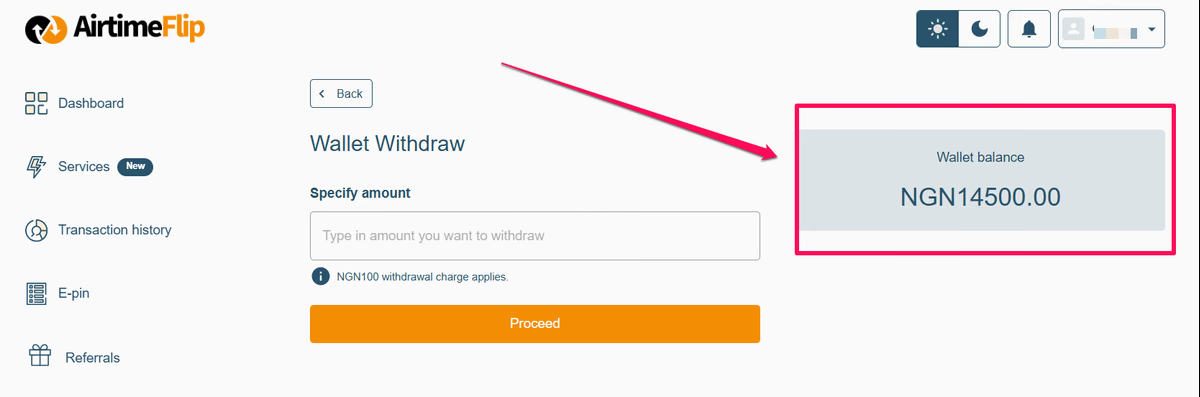
While airtime conversion is a great way to fund your wallet, you can also use your wallet balance to unlock a full suite of services provided by AirtimeFlip.
AirtimeFlip lets you buy airtime and data, purchase eSIMs or gift cards, fund betting accounts, buy bulk airtime, send airtime and data abroad and pay for utilities like electricity, cable TV, and WAEC PINs. Since all of these services require a wallet balance, let's look at how you can easily fund your account.
How to Fund AirtimeFlip Wallet
Step 1: Get Started
Sign in if you are an existing user, or create your new AirtimeFlip account by visiting AirtimeFlip Web on your mobile or PC browser or using our mobile app (iOS or Android ) to get started.
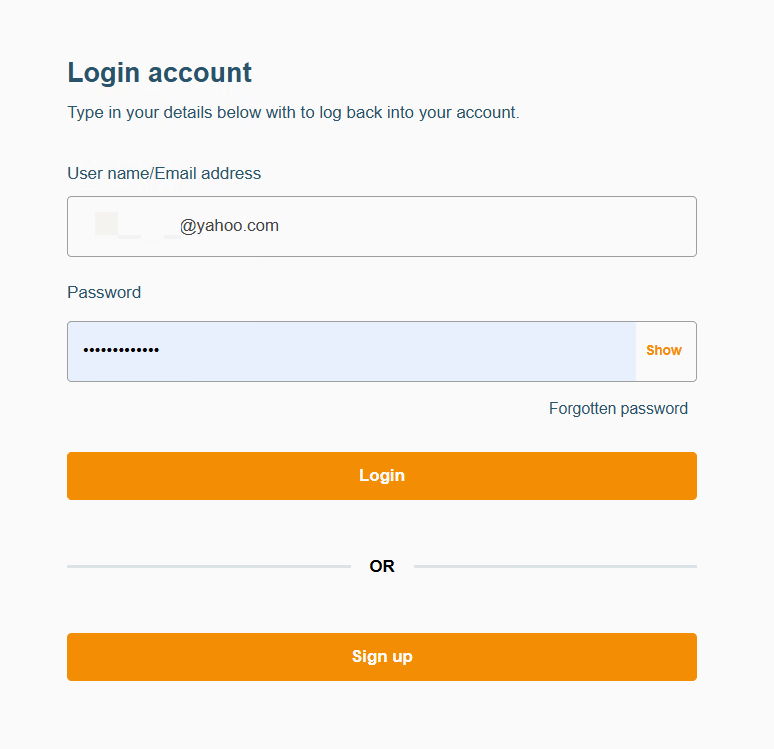
For new users, a confirmation link will be sent to your email address. Click this link to verify your email ownership and proceed to the next steps.
Step 2: Complete Account Verification
All newly created accounts need to complete account verification. Verifying with your NIN upgrades your account to KYC Level 2, which enables you to fund your wallet (explained in the next step) to access a full suite of services.
On Desktop (Web)
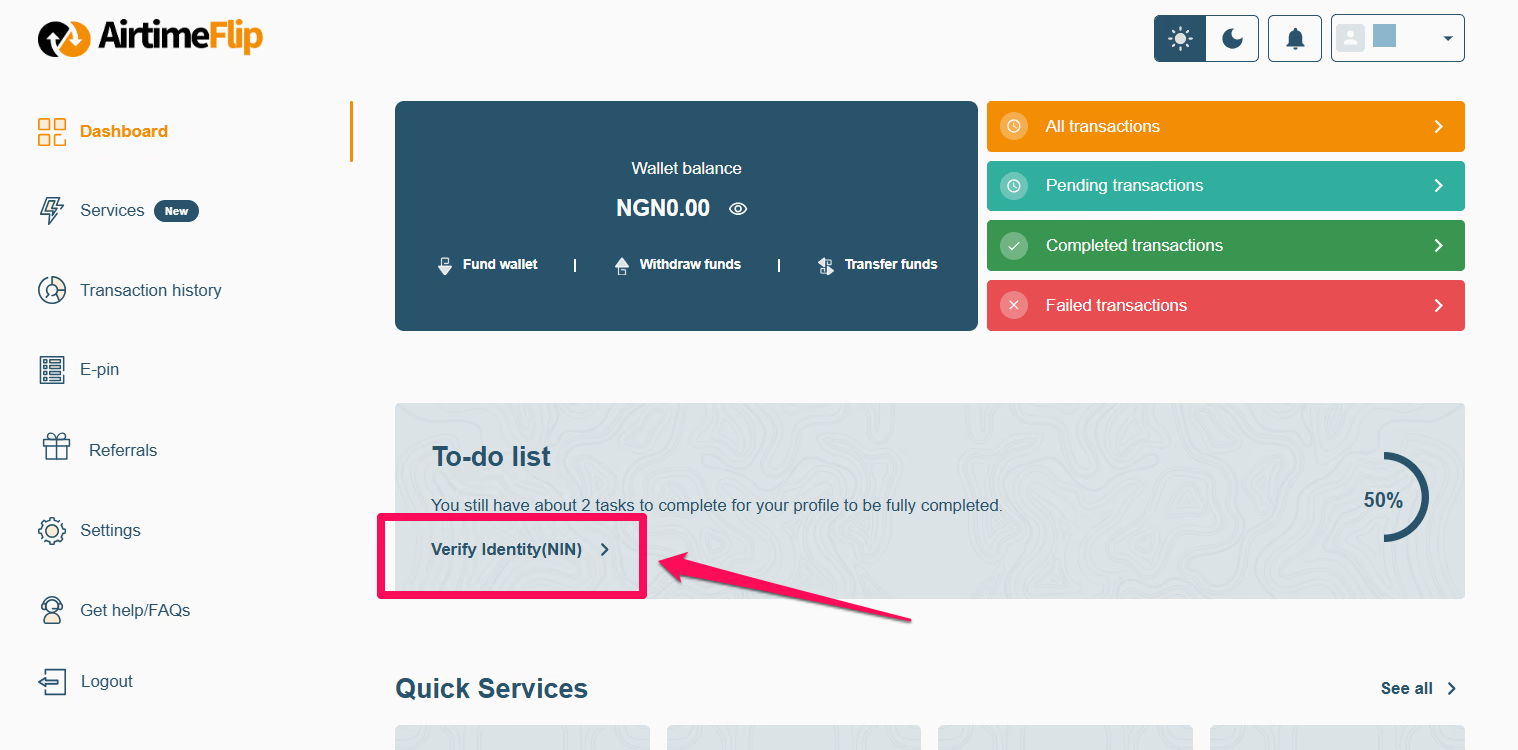
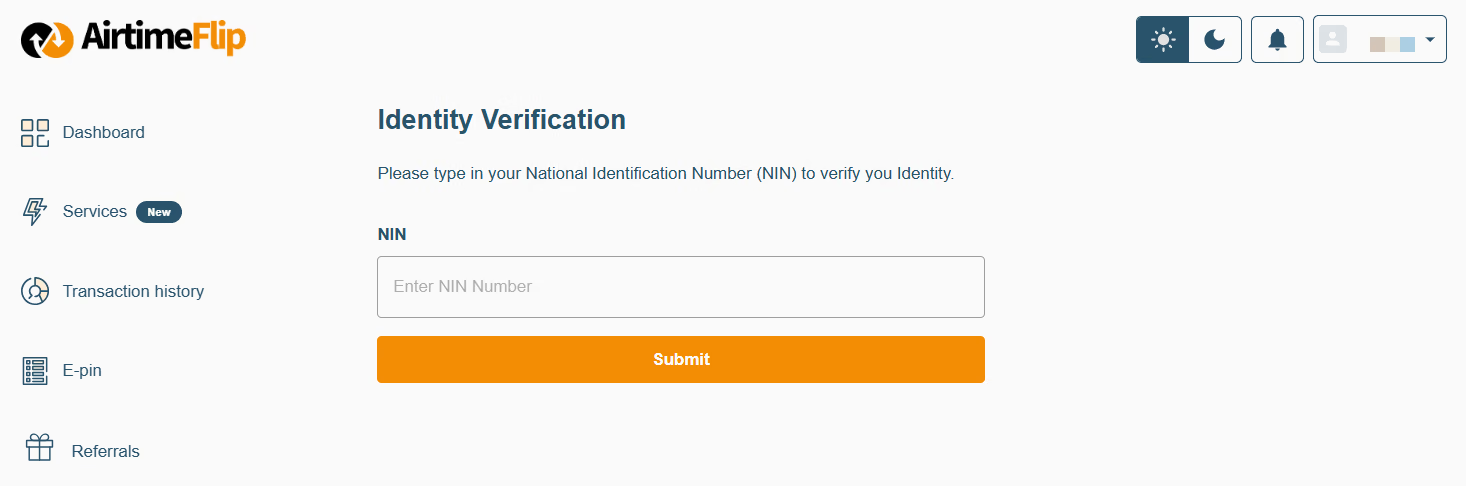
On your AirtimeFlip account dashboard, you’ll see a “Verify Identity” todo-list that needs completion. Click on it and verify your account using your NIN.
On Mobile
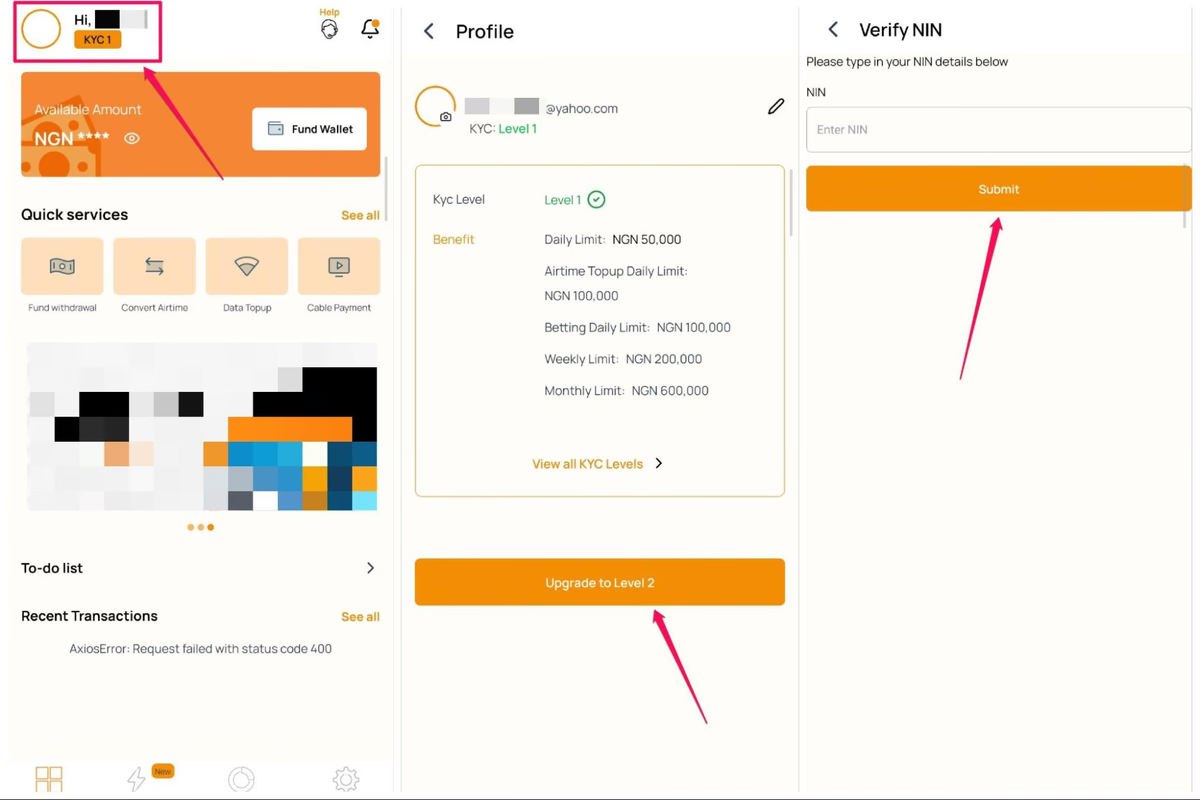
Follow these quick steps to easily upgrade to KYC Level 2 on the mobile app:
- Tap your profile icon in the top-left corner of the app.
- Select the upgrade option, click the orange button.
- Enter and submit your National Identification Number (NIN). Your account will be upgraded immediately following verification.
Step 3: Fund Your Wallet
Whether you are using the desktop (web) or our mobile app, it is important to add a little extra for the 1% funding fee, so you have exactly what you need. For example, if you want to pay for a service worth ₦10,000, adding an extra ₦100 will cover the fee and ensure the transaction goes through without issues.
On Desktop (Web)
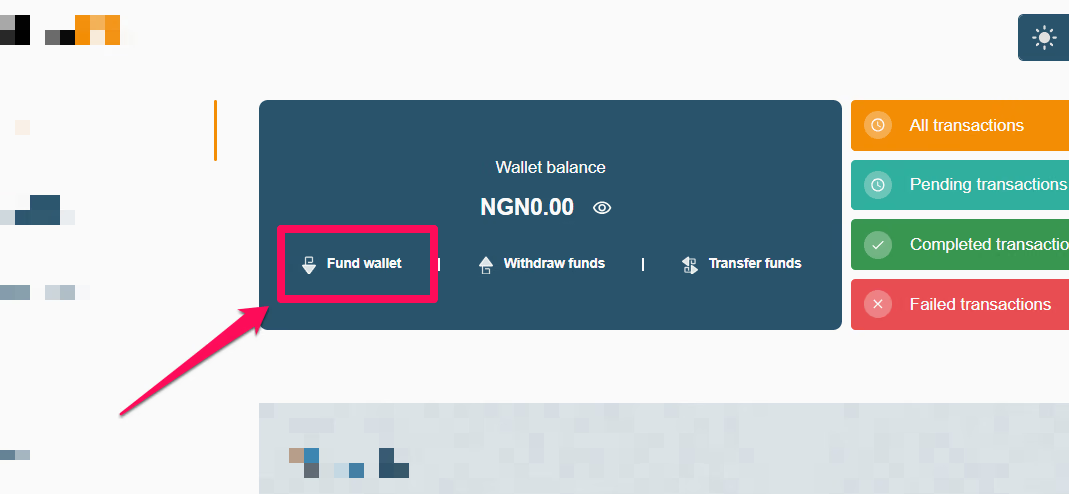
If you are using the desktop platform, go to your ‘Dashboard’, click the ‘Fund Wallet’ button and credit your account with the exact amount (plus the 1% funding fee) depending on the service you want to pay for. Both card and bank transfer options work seamlessly.
On Mobile
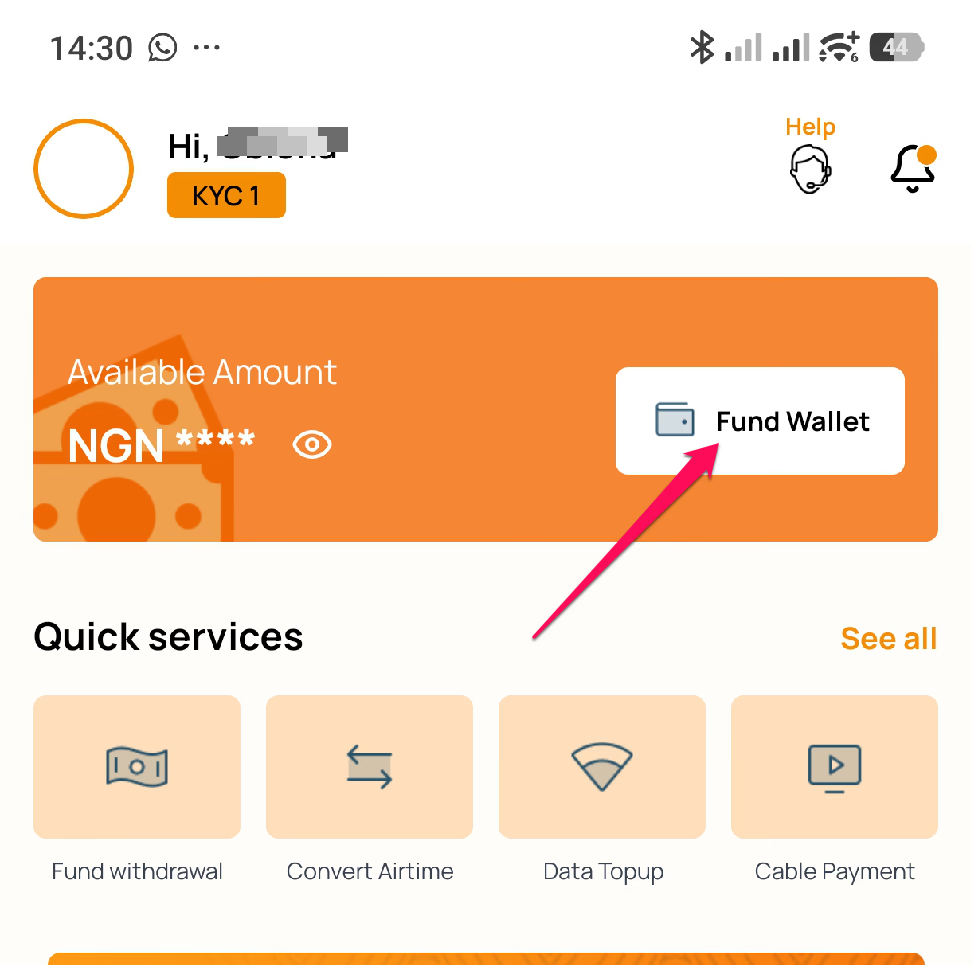
If you are using our mobile app (iOS or Android), click on the ‘Fund Wallet’ button and use any of the options:
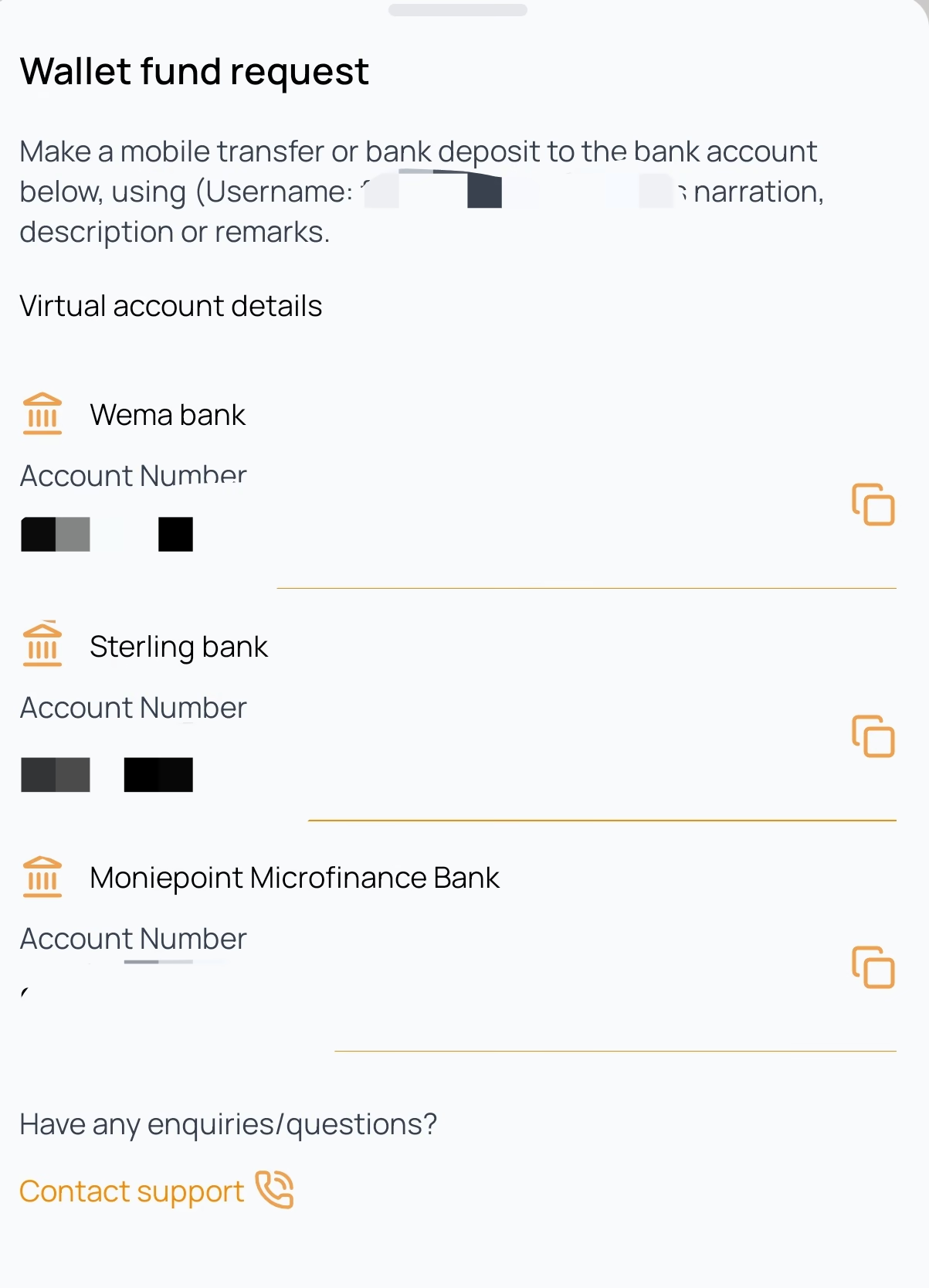
- Fund With Bank: Make a transfer to either Wema Bank, Sterling Bank, or Moniepoint as displayed on your AirtimeFlip account.
- Fund With Card: Enter your deposit amount, and you’ll be redirected to the payment gateway. Provide your Visa/Verve/Mastercard details and complete the transaction.
Note: AirtimeFlip is not a bank and does not support funding wallets for the purpose of withdrawals. If you fund your wallet and immediately initiate a withdrawal, the transaction may be flagged in line with our Terms & Conditions. To process a reversal from a flagged account, please refer to our Payment & Transaction FAQs (Question 8) for help.
Step 4: Select Your Preferred Service
Once your wallet is funded, select your desired service, enter the required details, and complete your payment.
Here are the AirtimeFlip services that utilise your wallet balance:
- Internet & Mobile: Data and airtime purchases (individual or bulk)
- Global Access: International top-ups and eSIM purchases
- Utilities & Entertainment: Electricity bills, cable TV renewals and other bill payments
- Lifestyle & Education: Gift cards, betting wallet funding, and WAEC PINs
That’s it!
Need any help? Reach out via our Contact Us page.
Share this guide