Our Gift Card Purchase service allows individuals and businesses who want a fast and secure way to buy and send gift cards online for entertainment, gaming, shopping, subscription purposes, or even to make payments on international platforms. The whole process is simple, and with just a few steps, you’ll have a digital gift card arrive in your email.
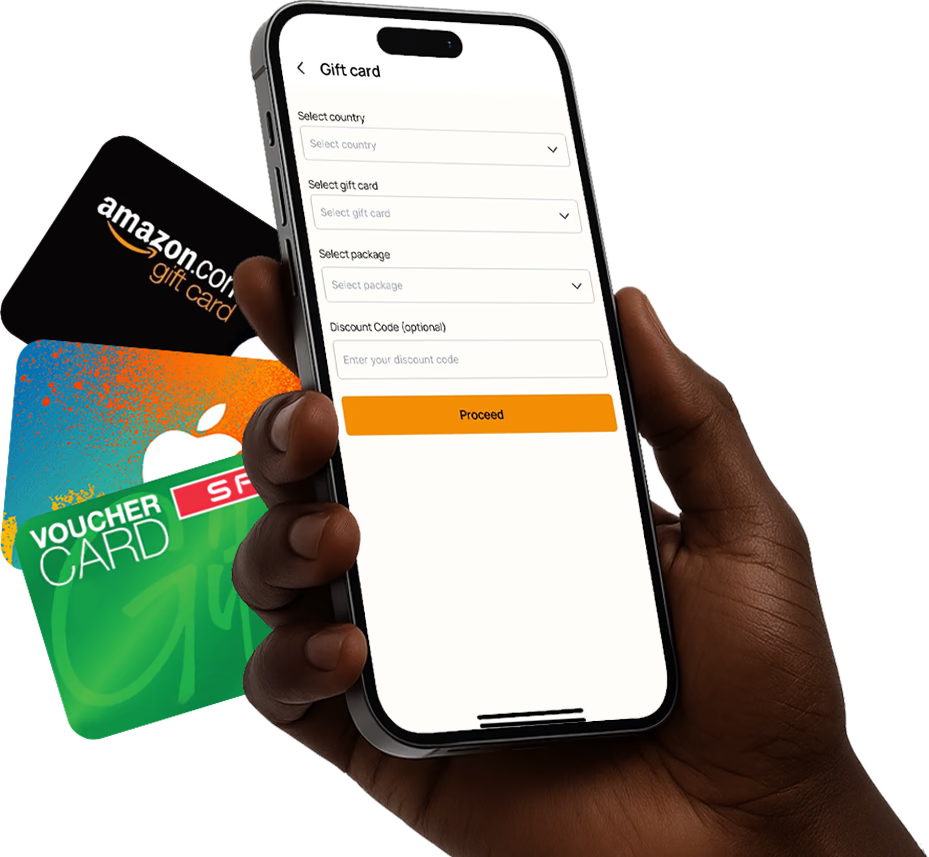
With AirtimeFlip, you can access a variety of popular gift cards for entertainment, subscriptions, shopping, gaming, and other digital services.
Here are some gift cards available on AirtimeFlip:
- For Entertainment: Apple, Disney+, Netflix, Spotify, Twitch, YouTube Premium, and more.
- For Shopping: Amazon, Walmart, Target, Best Buy, Sephora, Nike, and more.
- For Gaming: PlayStation, Xbox, Steam, Nintendo, Razer Gold, and more.
This guide explains everything you need to do from account setup to successful purchase. We’ve separated this guide into different methods for users on the AirtimeFlip Website and the mobile app.
On Web
Using your PC or mobile browser, you can simply follow these steps to purchase gift cards directly from AirtimeFlip.
Step 1: Get Started
Firstly, log in to your AirtimeFlip account or register if you don’t have one. Visit the AirtimeFlip Website and click on either Login or Create Account. For new users, you’ll need to provide a username, email address, phone number, and password.
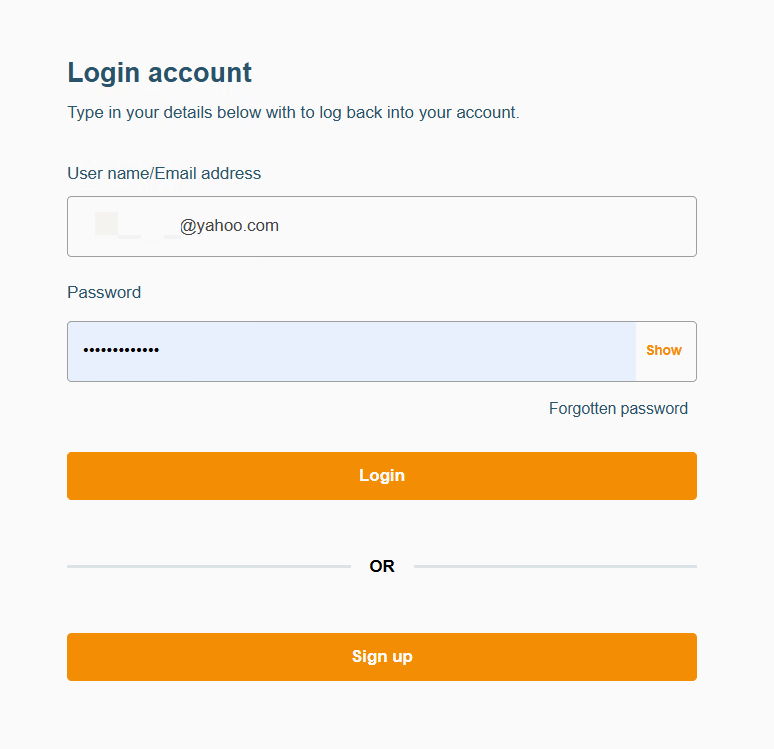
Once your registration is completed, verify your email via the verification link sent to your inbox.
Step 2: Verify Account
After registration, any new AirtimeFlip account needs to go through identity verification. On the AirtimeFlip user Dashboard, go to the “To-do List” > Click on “Verify Identity”. Then provide your NIN to complete the process.
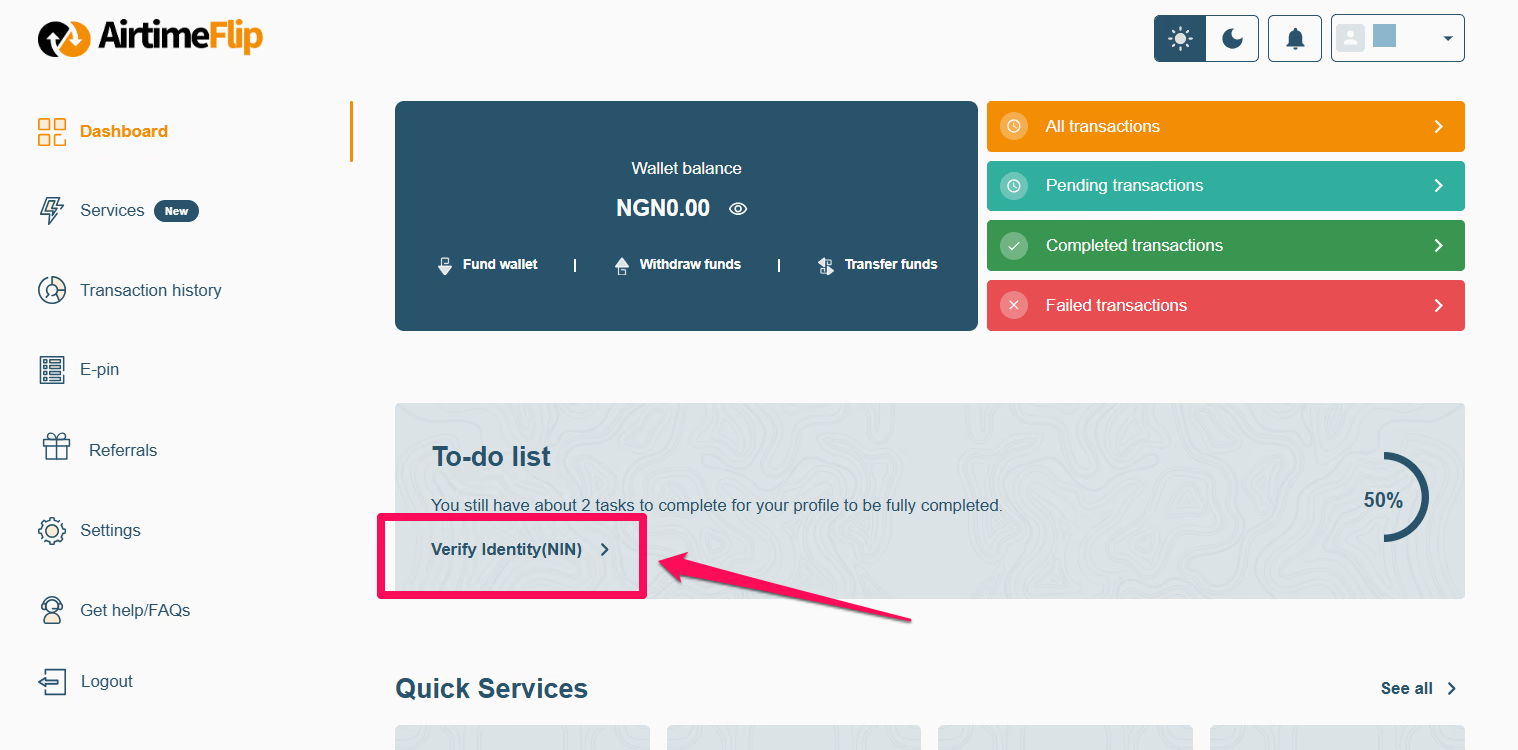
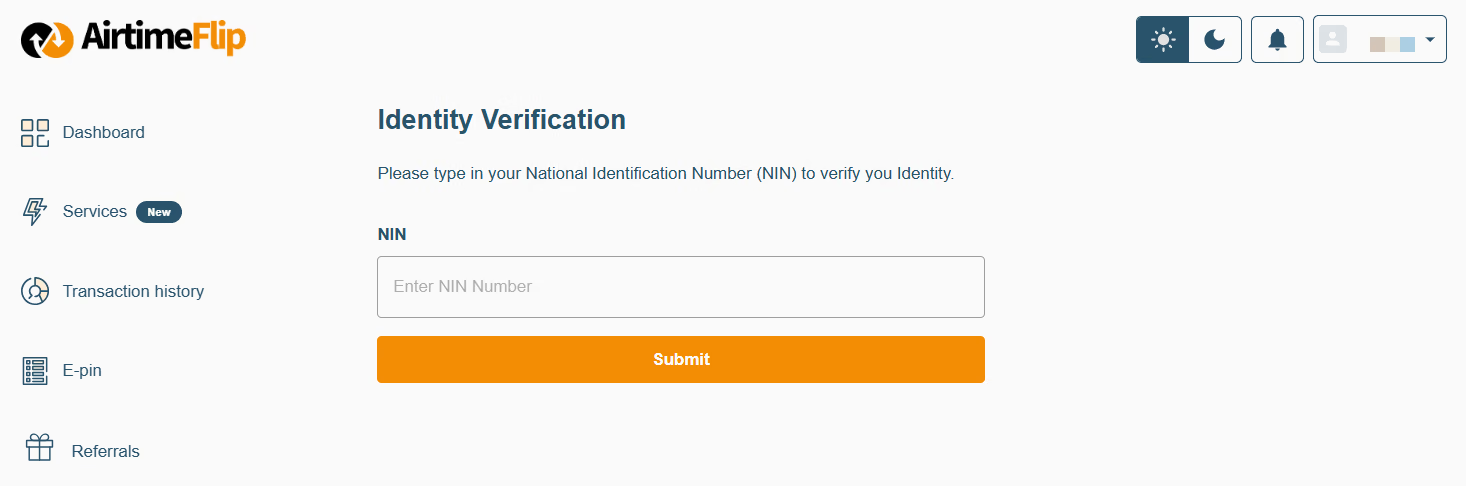
This account verification process basically unlocks the wallet funding feature, which is required for gift card purchases.
Note: If you’re an existing user with a verified account, skip to Step 3.
Step 3: Fund AirtimeFlip Wallet
Before you can buy any gift card, you first need to add money to your wallet. It can be the exact amount (including a 1% funding fee) for the gift card you want to buy or higher.
You can read our detailed wallet funding guide or follow the quick steps below:
- In your Dashboard > click Fund Wallet > Choose your preferred payment method, and complete the payment.
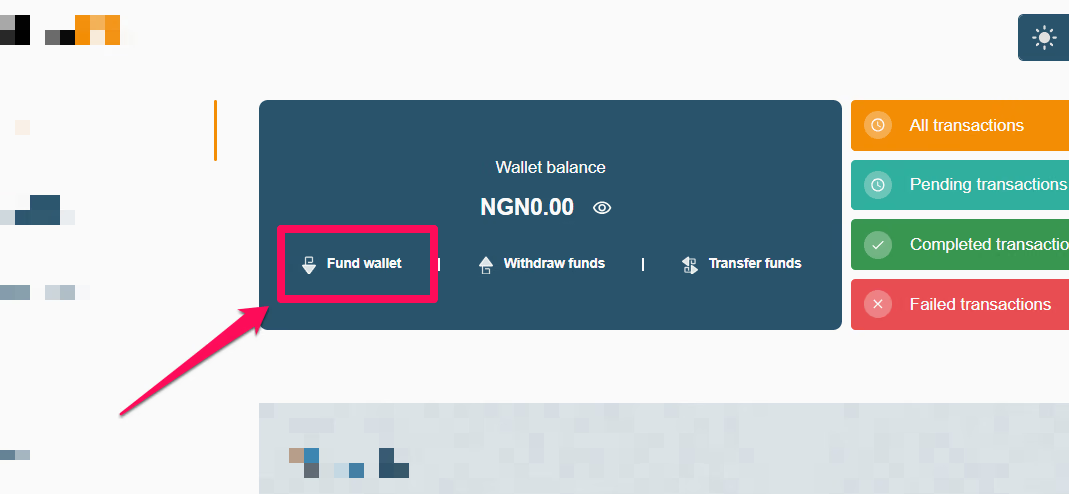
Note: Only NIN-verified accounts (upgraded to KYC Level 2) on AirtimeFlip can use the wallet funding feature.
Step 4: Navigate to Gift Card Services
Once you’ve funded your wallet. Go to ‘Services’ > click on ‘Gift Cards’.
From there, you can select the gift card Country, Provider (Apple/iTunes, Google Play, Steam, etc.) and Package.
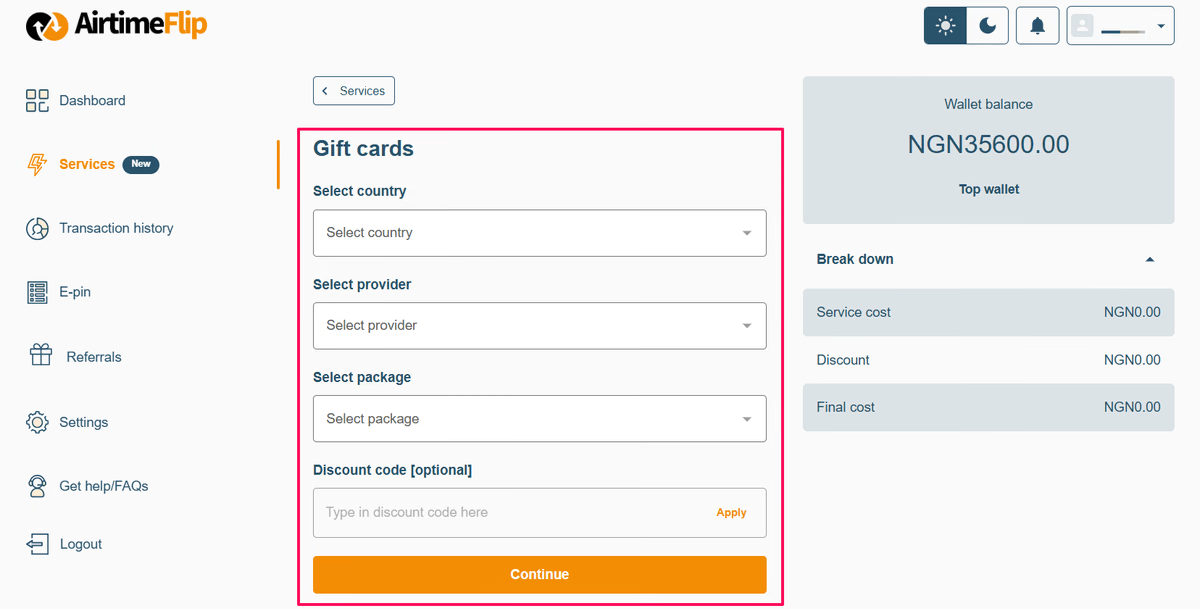
Note: Make sure you select the correct country because some gift cards are country-specific and may not work globally.
Step 5: Confirm Purchase
Before completing a purchase, kindly review the following details before proceeding:
- Country
- Provider
- Package
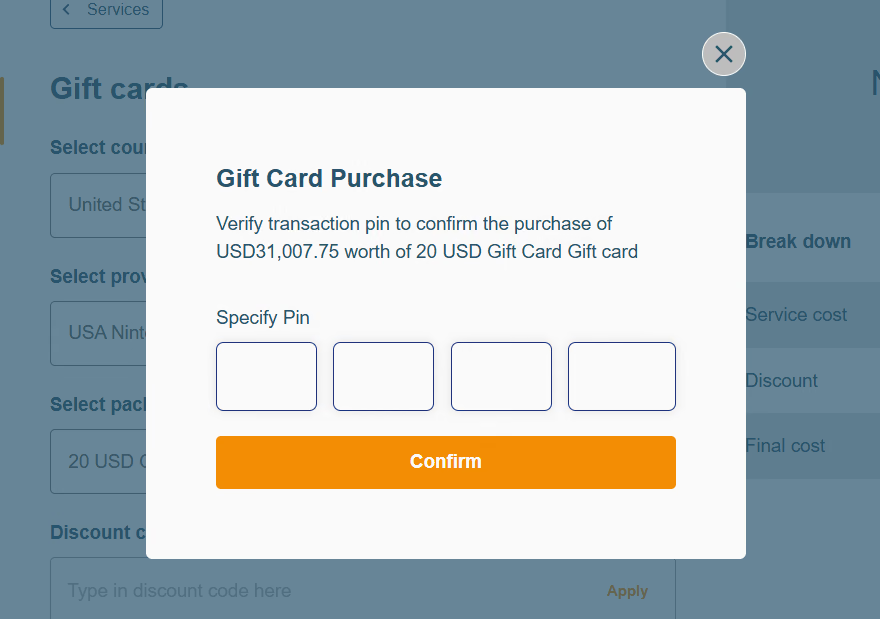
Once confirmed, you can click on Continue, then enter your 4-digit AirtimeFlip transaction PIN. Your purchased gift card will arrive in your email within a few minutes.
On Mobile
Using your Android or iOS device also makes it easy to buy gift cards directly from AirtimeFlip, and these steps cover everything you need to know.
Step 1:Download App
Head over to the Google Play Store or Apple Store to download and install the latest AirtimeFlip app version.
Using your Android or iOS device also makes it easy to buy gift cards directly from AirtimeFlip, and these steps cover everything you need to know.
Step 2: Login or Create Account
After installation, log in or create an account if you’re a new user. Provide your username, email address, phone number, and password to complete registration.
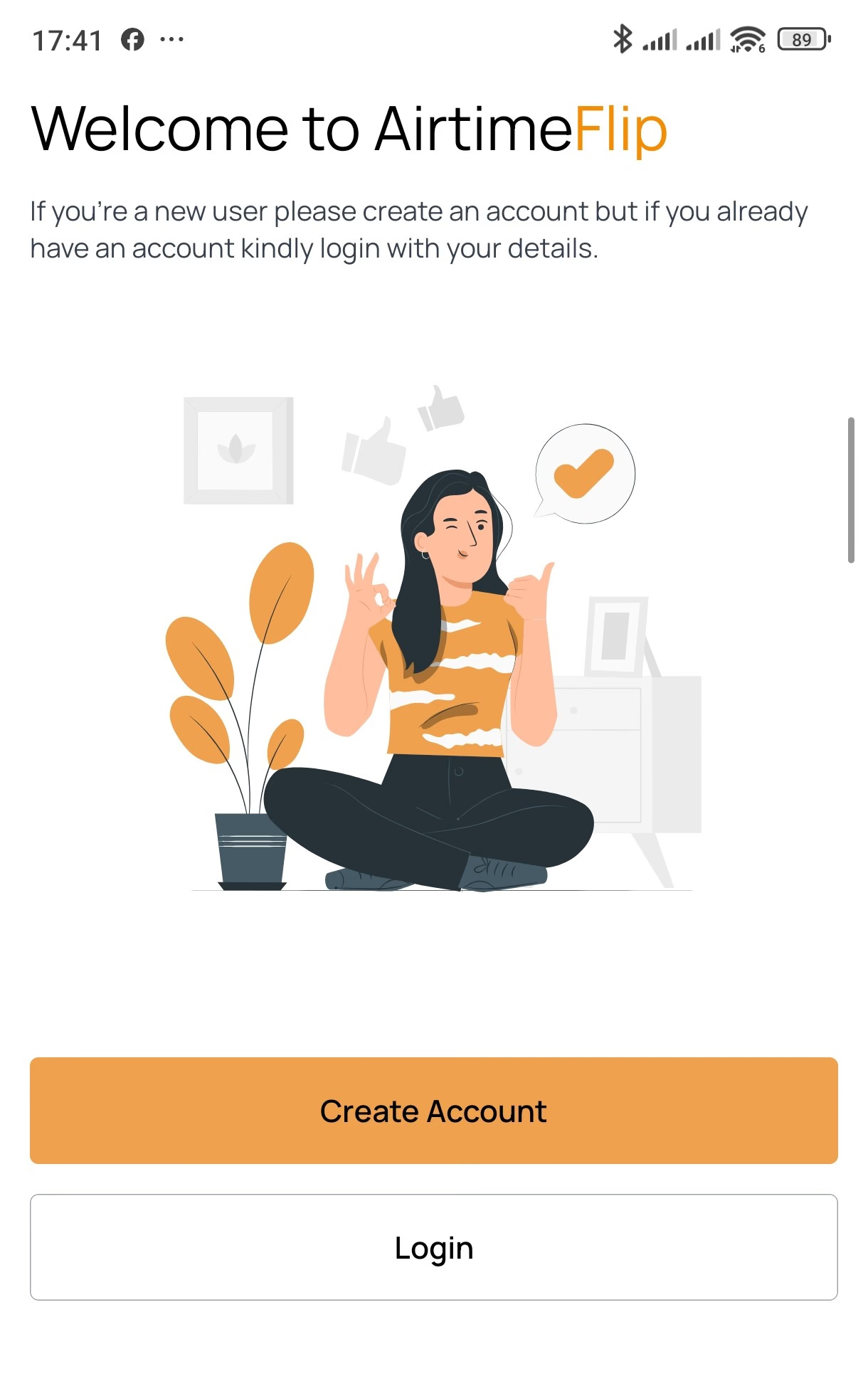
Make sure you confirm ownership by verifying your email via the verification link sent to your inbox.
Step 3: Verify Account
Once you’ve completed your registration, the next step is to NIN-verify your account to unlock the wallet funding feature, which is required to purchase gift cards.
On the AirtimeFlip App Dashboard, follow the steps below:
- Tap your profile icon in the top-left corner of the app.
- Select the upgrade option, click the orange button.
- Enter and submit your National Identification Number (NIN). Your account will be upgraded immediately following verification.
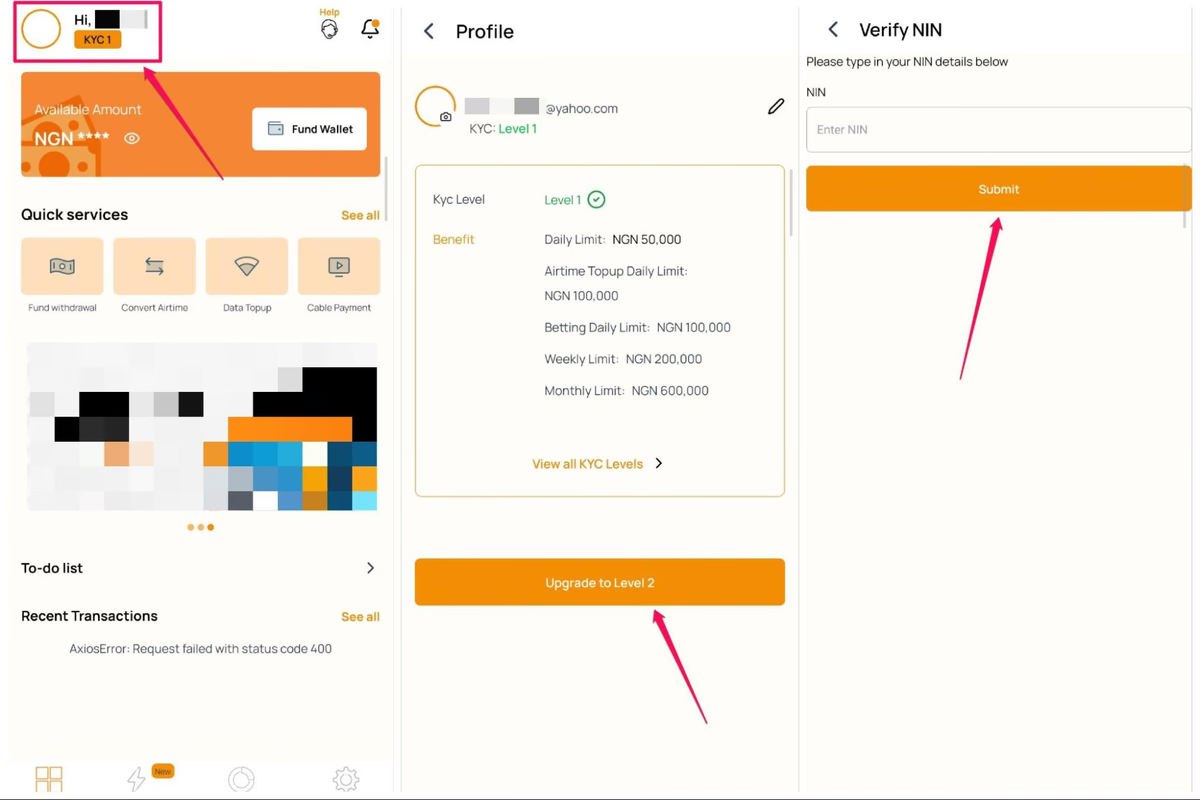
Note: Upgrading your account to KYC Level 2 via NIN verification is important to transact seamlessly on AirtimeFlip.
Step 4: Fund Wallet
Now, fund your AirtimeFlip account by clicking on ‘Fund Wallet’ > Choose your preferred payment method (bank transfer or card), and complete the payment. You can deposit the exact purchase amount or higher, just make sure to include a 1% funding fee.
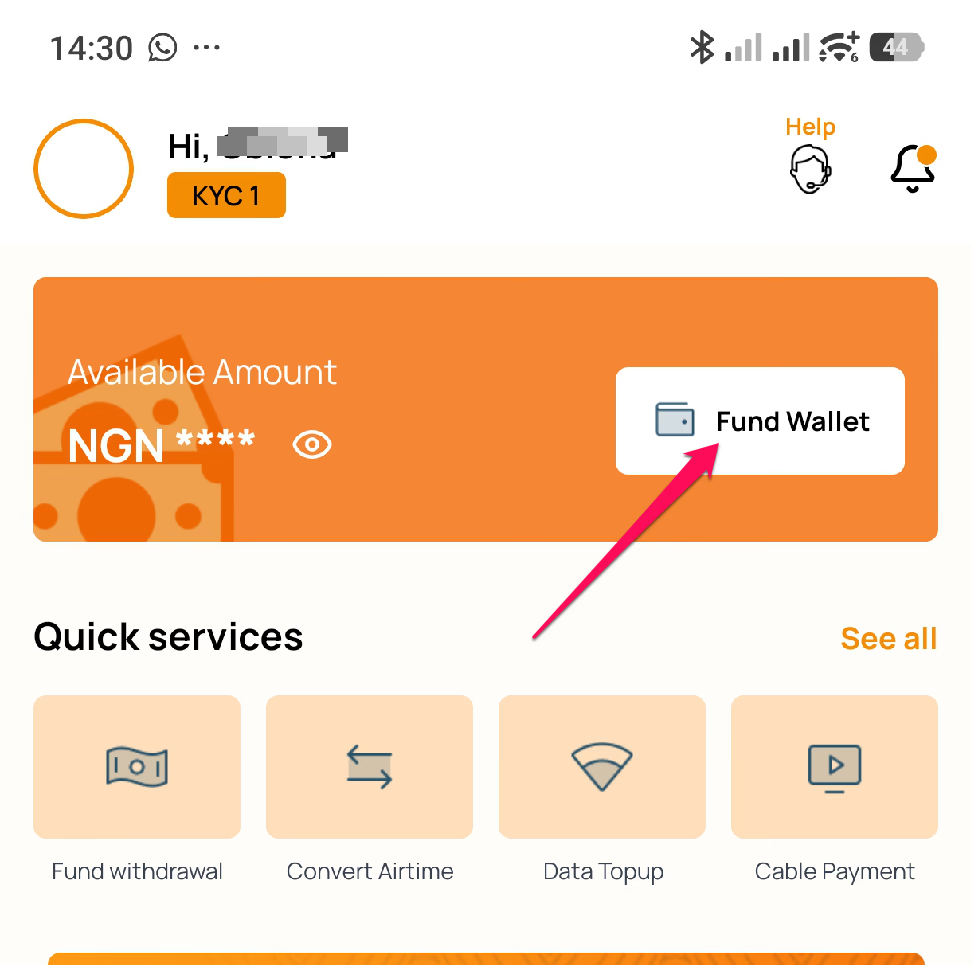
For example, if you want to buy a gift card that costs ₦10,000, adding an extra ₦100 will cover the fee and ensure a successful purchase.
Step 5: Navigate to Gift Card Services
Once you’ve funded your wallet. Go to ‘Services’ > click on ‘Gift Cards’. From there, you can select the gift card Country, Gift Card Provider (Apple/iTunes, Google Play, Steam, etc.) and Package.
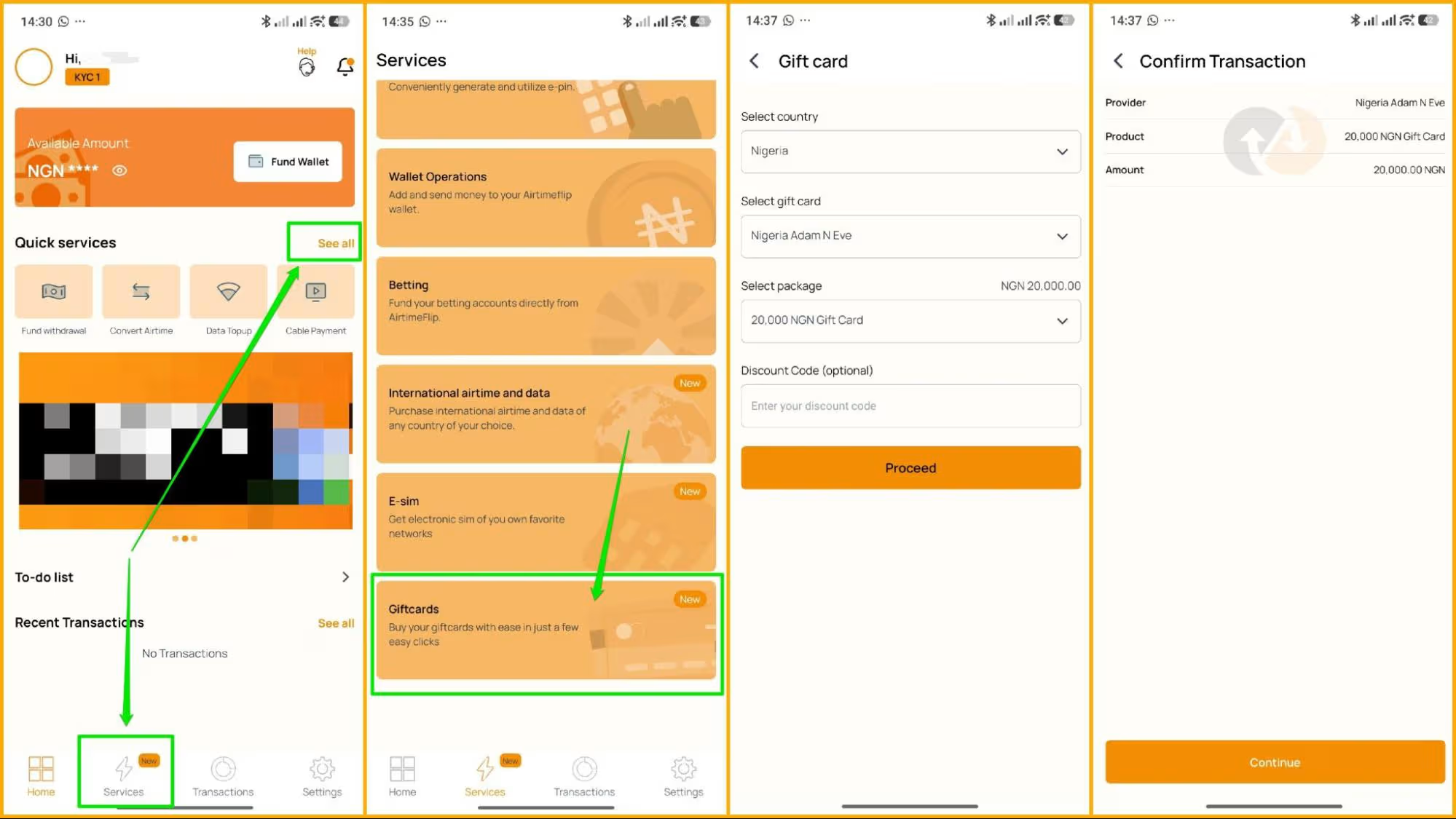
Note: Make sure you select the correct country because some gift cards are country-specific and may not work globally.
Step 6: Confirm Purchase
Before completing a purchase, kindly review the following details before proceeding:
- Country
- Gift Card Provider
- Package
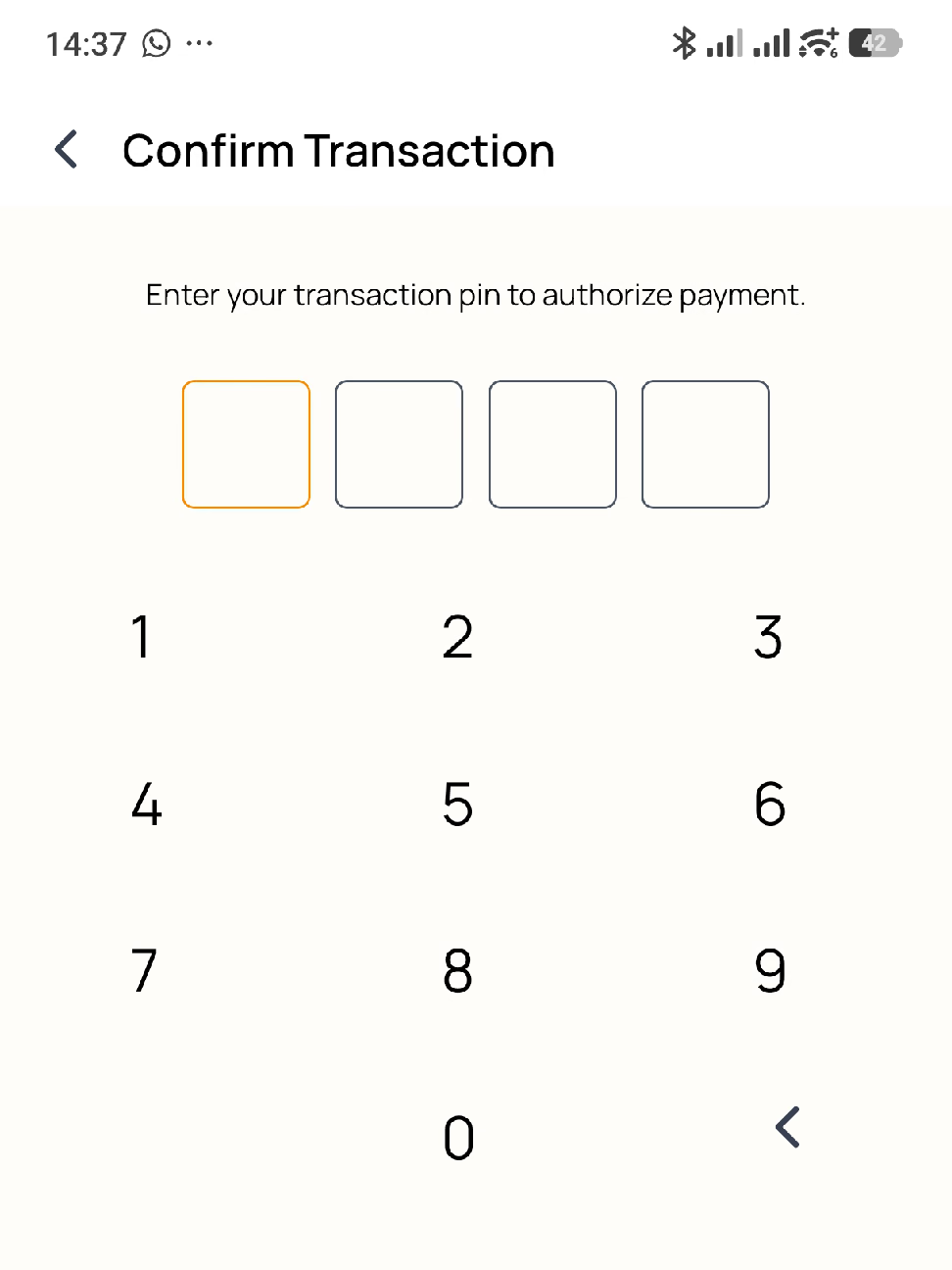
Once confirmed, you can click on Continue, then enter your 4-digit AirtimeFlip transaction PIN. Your purchased gift card will arrive in your email within a few minutes.
That's it!
AirtimeFlip goes far beyond just gift card purchases. It is your all-in-one platform to convert airtime to cash, top-up airtime in bulk, buy data, buy airtime, and purchase eSIMs or international airtime and data. You can also seamlessly settle everyday bills, from electricity, cable TV renewals to funding betting accounts and buying WAEC PINs. Read more about AirtimeFlip.
Need any help? Reach out via our Contact page
Share this guide